
Netgear’s Nighthawk routers are one of the best routers for gaming and streaming. Are you looking for a way to change your WiFi name and password via the nighthawk router login? Do you want to configure other internet settings? In this article, we are going to help you log in to your Nighthawk router and give you access to its configurations.
Today, we are going to give you a couple of methods and they are going to help you get into the admin panel. We are also going to show you how you can change the WiFi name and password. Ready? Let’s get started.
Nighthawk Router Login
Before logging into your Nighthawk router, you must have a few things on hand.
- A device with working WiFi.
- An Ethernet cable (only if you don’t have your WiFi password).
Unlike most routers, there are two ways to login to your Nighthawk router. We are going to cover both of them. These methods are applicable to all Nighthawk routers.
1. Login Router using the Browser
This is the traditional way of logging into a router. You can use any browser on a PC, Mac, Android, or iOS device to do this. Just follow the steps below to log into your Nighthawk router.
a. Make Sure That Your Device Is Connected
When logging into any router, you must make sure that your device must be connected to the WiFi router. To check whether your device is connected to the WiFi router that you want to configure, all you have to do is:
- On Windows, simply click on the WiFi icon in the system tray and check the WiFi name.

- On Mac, click the WiFi icon on the menu bar.

- Check the quick settings panel on Android.

- Check the control center on iOS.

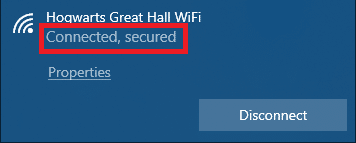
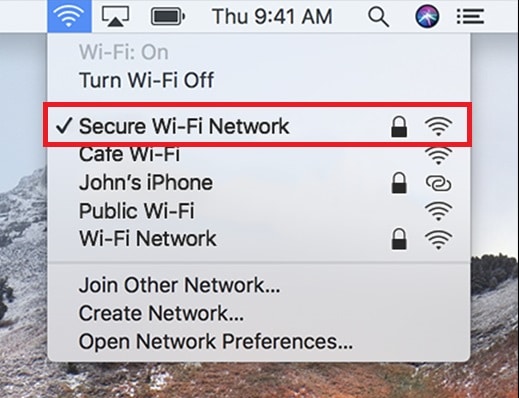
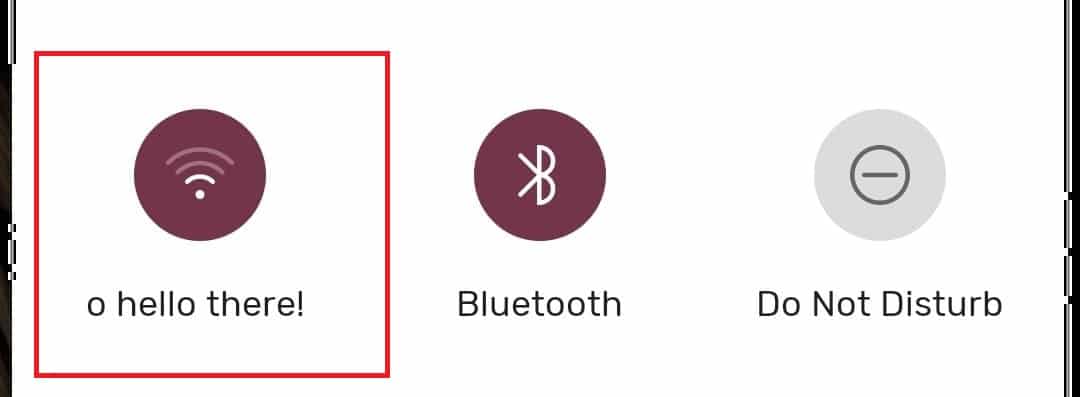

You can connect your router to your desktop or laptop using an ethernet cable if you do not have the WiFi password.
b. Open the Gateway
Routers have default IP addresses that can take you to the login page.
- Open up a browser.
- Enter 192.168.1.1 in the address bar. You can also enter with routerlogin.net or routerlogin.com.


This will take you to the login page.
c. Login With Your Username and Password

Now, you have to enter the username and password. The default username is admin and the password is the one that you specified the first time that you logged in. You will be taken to the Basic home screen.
Note that the admin password is not the same as the WiFi password. if you have forgotten the admin password, then you can recover it by following these steps:
- Connect a device to the WiFi.
- Enter routerlogin.net or routerlogin.com.
- Hit cancel.
- In the Router Password Recovery Window, enter the serial number. You can find this on a label on the router.

- Answer the security questions.
- Click Continue to reveal your admin password.

If you don’t know the answers to your security questions, then you are going to have to reset your router. To do that, simply press the reset button on the rear panel for at least 10 seconds with a pin.

2. Login using the Nighthawk App

Netgear also offers an app to configure your Nighthawk router. To log in to your router, all you have to do is:
- Download the Nighthawk app from the Play Store by clicking on this link. You can also download it from the App Store for iOS devices by clicking on this link.
- Connect your device to your WiFi.
- Open up the Nighthawk app.
- Log into your Netgear account. You can create one if you don’t have it.

- Follow the instructions until you reach the login page.
- Enter the default username admin and the admin password. Refer to the previous section of this article if you do not remember your admin password.

- That’s it! You are now logged into your Nighthawk router.


How to Change Your Nighthawk WiFi Name and Password?
1. Change It Using the Browser
- Log in to your router using the browser method.
- Go to Advanced> Wireless Setup.

- Enter the new WiFi name in the Name(SSID) box.

- Enter your new password in the Password (Network Key) box.

- Click Apply.


2. Change it Using the Router App
- Log in to your router using the app.
- Tap WiFi Settings.
- Tap on your WiFi Network.
- Enter your new WiFi name and password.
- Hit Save.
Also Read: How to Login Xfinity Router
Final Take
That’s all you need to know about the Nighthawk router login. I hope that you found this article informative. If you have any doubts or suggestions, please let me know in the comment section down below and I will get back to you as soon as possible.