Showtime is an American-based television channel where users get a wide variety of content from sports, news, movies, TV shows, live shows, original productions, and many more. Showtime Anytime made its debut as an entertainment channel in 2001. Back then it was headed by Viacom company. After few years the company broke down into two and then merged back in 2019. The current stack owner of Showtime Anytime is ViacomCBS. A very common hurdle for the new users is that they find it difficult to activate Showtime Anytime and we will sort it out for you.

Activating showtime anytime is not at all a very time-consuming task. You are just a few minutes read away from knowing the answer. Here we will guide you to activate it, no matter what device you are streaming it on.
Prerequisites Needed
Showtime Anytime is readily available on Android, Windows, Apple devices along with Roku, Xbox One, and Smart TVs. You need to complete a set of requirements before you can activate and use your device for streaming showtime anytime.
- Your cable or satellite provider has to be a part of the Showtime program and must be licensed to stream the service on the device you are going to use.
- You need to have a Showtime subscription with your cable or satellite provider.
- And lastly, you must have a registered Showtime Anytime account before being able to activate the service on your respected device.
New To Showtime?
If you are a new user and do not have an account on the platform before, you will need to create a new one with Showtime Anytime to proceed. Here are the step-by-step procedures to be followed while creating a new account:

- You need to open the Showtime Anytime website to start with creating your own account. Click here to get redirected to its official website.
- Look for the ‘Get Showtime Now’ link and click on it.
- Choose your provider from the list of available providers like Hulu, Roku, etc.
- Fill out your proper details and follow the instructions on the screen. In few minutes you are done with your account creation.
How to Activate Showtime Anytime?
I guess you have been waiting for the answer to this question, and now the wait is finally over. Read ahead as we provide you detailed information and process to activate your showtime on different devices:
1. On Android Mobile or iPhone
To activate showtime on your Android or iPhone, follow the procedures mentioned below:
- Launch the Showtime Anytime app on your mobile phone.
- Click on any of the videos you’d like to watch.
- When prompted, choose your streaming service or provider. If prompted again, sign in to your provider or service account.
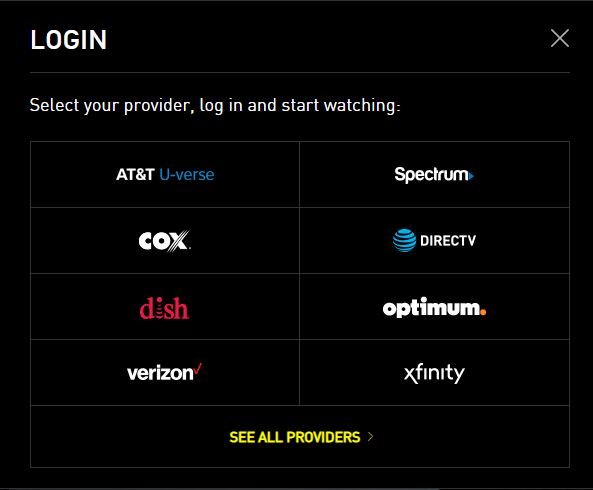
- You will see the activation code displayed on your screen. Write it down.
- Launch a browser on your computer and go to showtimeanytime.com/activate.
- Log in with your credentials and write the activation code which you noted down.
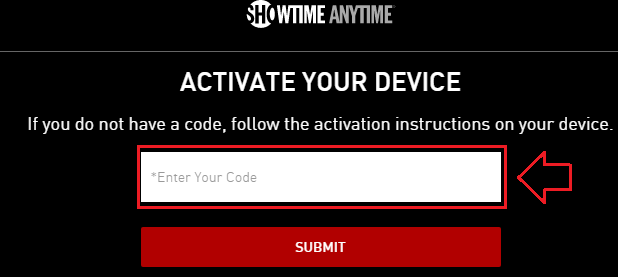
- When the success message appears on your screen, your account has been activated. Now you can enjoy any show on Showtime anytime.
2. On Apple TV
If you have got an Apple TV installed and want to activate showtime anytime, please follow the steps below:
- Open your Apple TV and open the Showtime Anytime channel.
- Select a program you’d like to watch and press either “Play” or “Activate”.
- Pick your streaming or TV provider from the list on the activation screen.
- Write down the activation code you get on your screen.
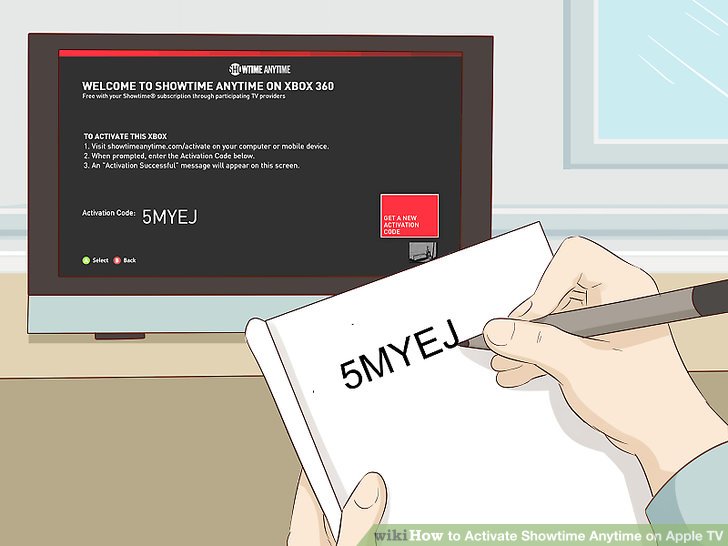
- Launch any browser on your computer and visit Showtime anytime official website.
- Follow the activation instructions on your screen.
- Sign in to your account for further process.
- Use the credentials for your TV or satellite provider account and then enter your Apple TV activation code that you wrote a few moments earlier.

- If you see the success message on the screen, you can go back to your Apple TV and start watching any of the shows on Showtime anytime.
3. On Android TV
Here are simple and easy to follow steps to activate showtime anytime on your Android TV:
- Visit the Showtime Anytime channel on your Android TV.

- Select a video and click on the “Activate” or “Play” option.
- Choose your provider from the given list.
- The activation code will show up on your screen. Write it down.
- Launch the browser on your computer.
- Visit the activation page on Showtime anytime official site and follow the instructions on your screen.
- Next, write the activation code that was displayed earlier.
- When the success message appears, you’re ready to watch Showtime Anytime on your Android TV.

4. On Roku
If you are a Roku device user and want to activate showtime on your device, just go through the underlying steps:
- Turn your Roku ON and browse to the Showtime Anytime channel.
- Open the menu and select the “Activate” option.

- Choose your streaming service or TV provider from the list. If it is not on the list, you can’t activate the service on your Roku.
- Note down the activation code as it is displayed on the screen.
- Now, open your computer’s browser and go to the activation page on Showtime anytime website.

- Follow the activation instructions as displayed.
- Next, go to the “Activate Devices” page and use the credentials for your provider’s account.
- Enter the activation code from Roku and now you can watch Showtime on your Roku device.
5. On Amazon Firestick
To activate showtime anytime on your Amazon firestick, follow the below-given steps:

- Download the Showtime application on Amazon Fire Stick.
- Launch the application.
- Sign up if you haven’t done it before.
- Follow the instructions on the screen and you will be billed via your Amazon account.
- After subscribing, you can use Showtime on supported devices.
6. On Xbox One
If you want to stream on Xbox One, here are the steps to activate showtime anytime:
- Turn on your Xbox One.
- Open the Showtime Anytime channel on the device.
- Open the menu and select either the “Activate” or “Play” options.
- You will see the list of eligible providers. Find and select your provider from the list.
- Next, you will see an activation code on the screen. Note it down.
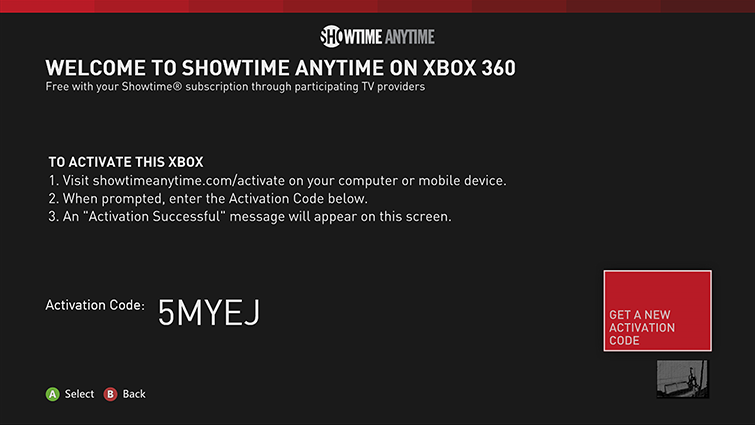
- Open your computer’s web browser and go to Showtime anytime official site.
- Find the activation page and follow the instructions.
- Go to the “Activate Devices” page and use your provider’s password and username to continue.
- Enter your Xbox One’s activation code that you noted earlier.
- When the success message appears, you’re ready to watch Showtime Anytime on your Xbox One.
Final Take
Many users find it difficult to activate showtime on different devices on which they wish to stream their favorite contents from Showtime. On this page, we have given you detailed information about how to activate showtime anytime on many supported platforms.
Tell us about your favorite show streaming on Showtime anytime in the comment section below. Also, share this page with your friends and help them in activating showtime on multiple devices.