
Switching from Outlook for Mac to Outlook for Windows seems like it should be painless, until you actually try to bring your mailbox along and realize the two apps don’t even speak the same file format.
Outlook for Mac stores everything in OLM. Outlook for Windows expects PST. That mismatch turns what should be a simple copy-paste into a real migration problem the moment you’re dealing with years of email, attachments, contacts, calendars, tasks, and notes.
Yes, you can export an OLM file out of Outlook for Mac. But having the file isn’t the same as being able to use it. Windows Outlook won’t touch it until it’s been converted, and that’s the gap Stellar Converter for OLM is built to close.
What I found more interesting than the conversion itself is that Stellar actually gives you two separate ways to do it: a browser-based OLM to PST Converter, and the full desktop Stellar Converter for OLM application. Same underlying problem, two very different approaches, and after testing both, I don’t think one is simply “better” than the other. They’re built for different jobs.
The Short Answer
If you’ve got one OLM file and just need a PST out of it quickly, use the online converter. Upload, wait, download, no installation required.
If you’re handling a larger mailbox, need to pick specific folders, want to look inside the data before committing to a conversion, or you’re moving an entire Mac mailbox over to Windows, go with the desktop app. It gives you far more control over what actually gets converted.
That distinction matters more than it sounds like it should. A single small OLM file doesn’t need the full desktop experience. A multi-year business mailbox probably shouldn’t be treated as a blind upload-and-download job.
Quick Recap: What Is an OLM File, Anyway?
Before comparing the two versions, it’s worth being clear on what we’re actually converting.
An OLM file is Outlook for Mac’s own mailbox archive format. When you export from Outlook for Mac, that file can bundle up:
- Emails
- Attachments
- Contacts
- Calendars
- Tasks
- Notes
- Mail folders
The catch is that Windows Outlook doesn’t recognize OLM at all, it works around PST instead. So the realistic migration path looks like this:
Outlook for Mac → OLM export → OLM-to-PST conversion → Outlook for Windows
That middle step is exactly what Stellar’s two products exist to handle.
Two Products, Two Very Different Workflows
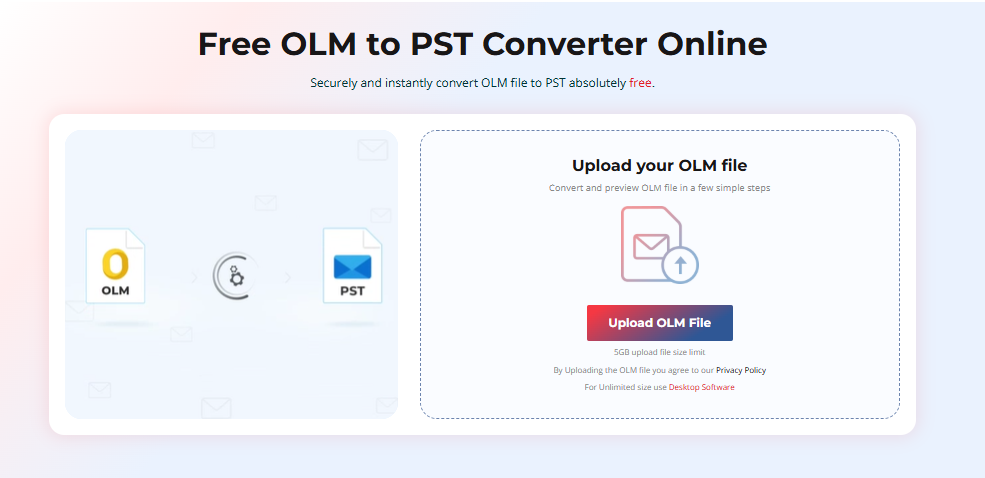
The Online OLM to PST Converter lives entirely in your browser. You upload the OLM file, the service processes it server-side, and you download a finished PST. No install, no setup, no learning curve.
Stellar Converter for OLM (desktop) is the full application. It scans your mailbox, lets you preview what’s actually inside before you export anything, and gives you the option to pick specific folders rather than converting the whole archive.
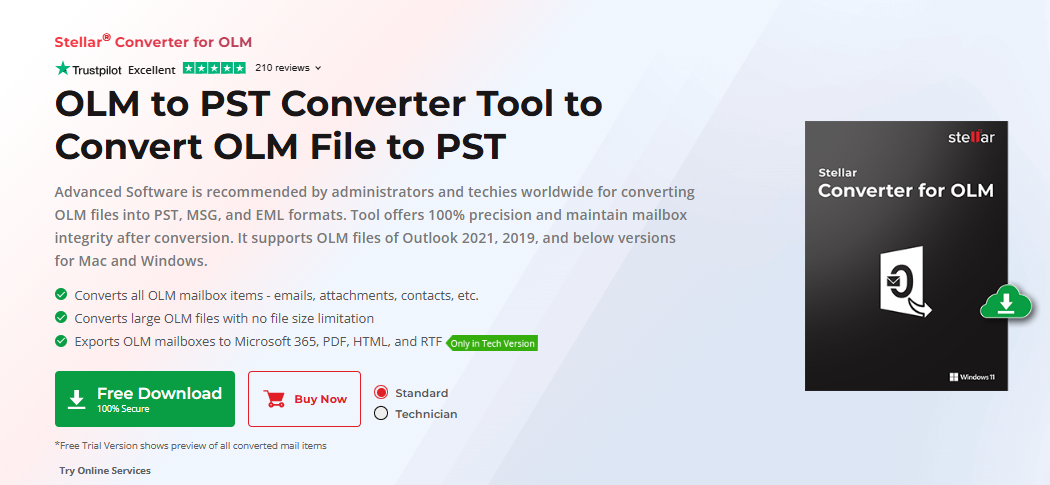
Once you get past a simple one-off conversion, that gap starts to matter a lot.
Testing the Online Converter
The appeal here is obvious the second you open it: there’s nothing to install.
If someone handed you an old OLM file and you just need it converted once, that alone removes a lot of friction. No installer, no configuration screens, no new interface to figure out.
The workflow is about as simple as it gets:
1. Open the online converter in your browser.
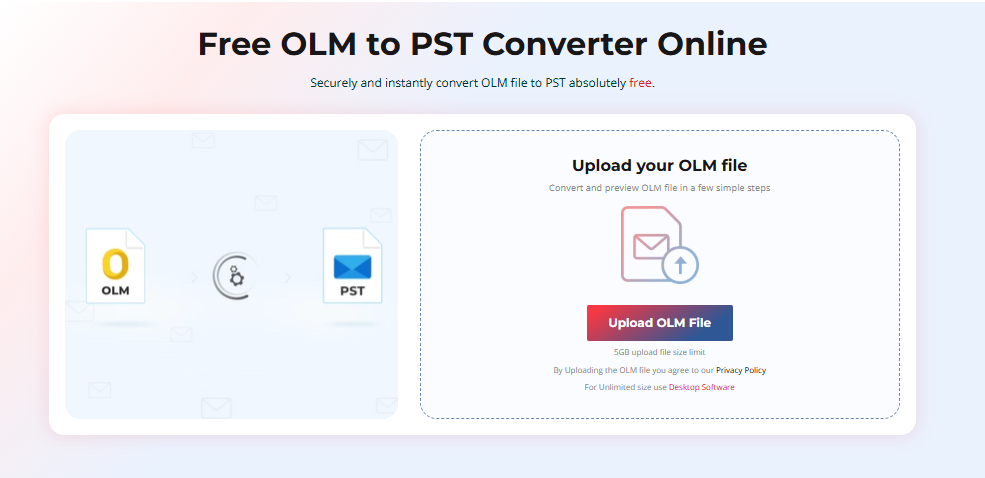
2. Upload the OLM file you want converted.
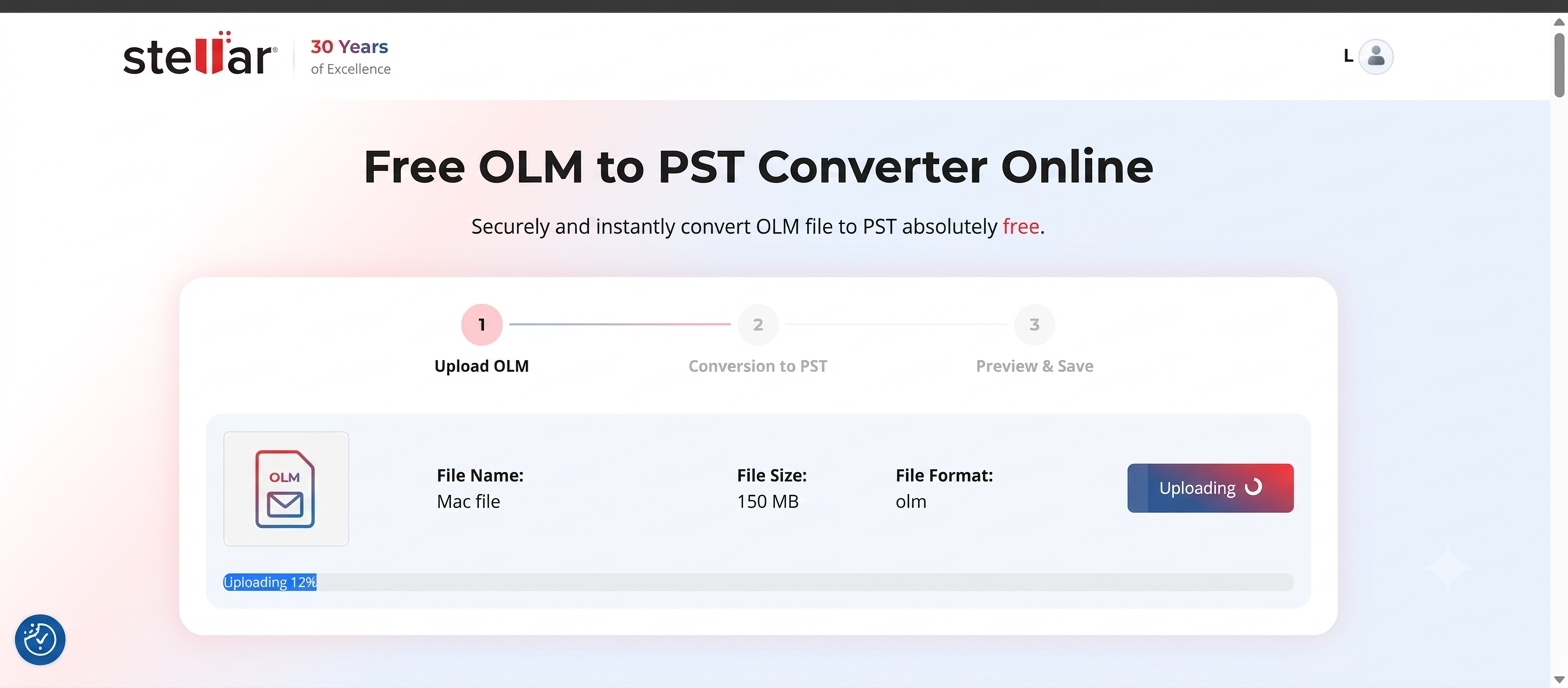
3. Let the service process the mailbox.
4. Download the resulting PST and import it into Outlook for Windows.
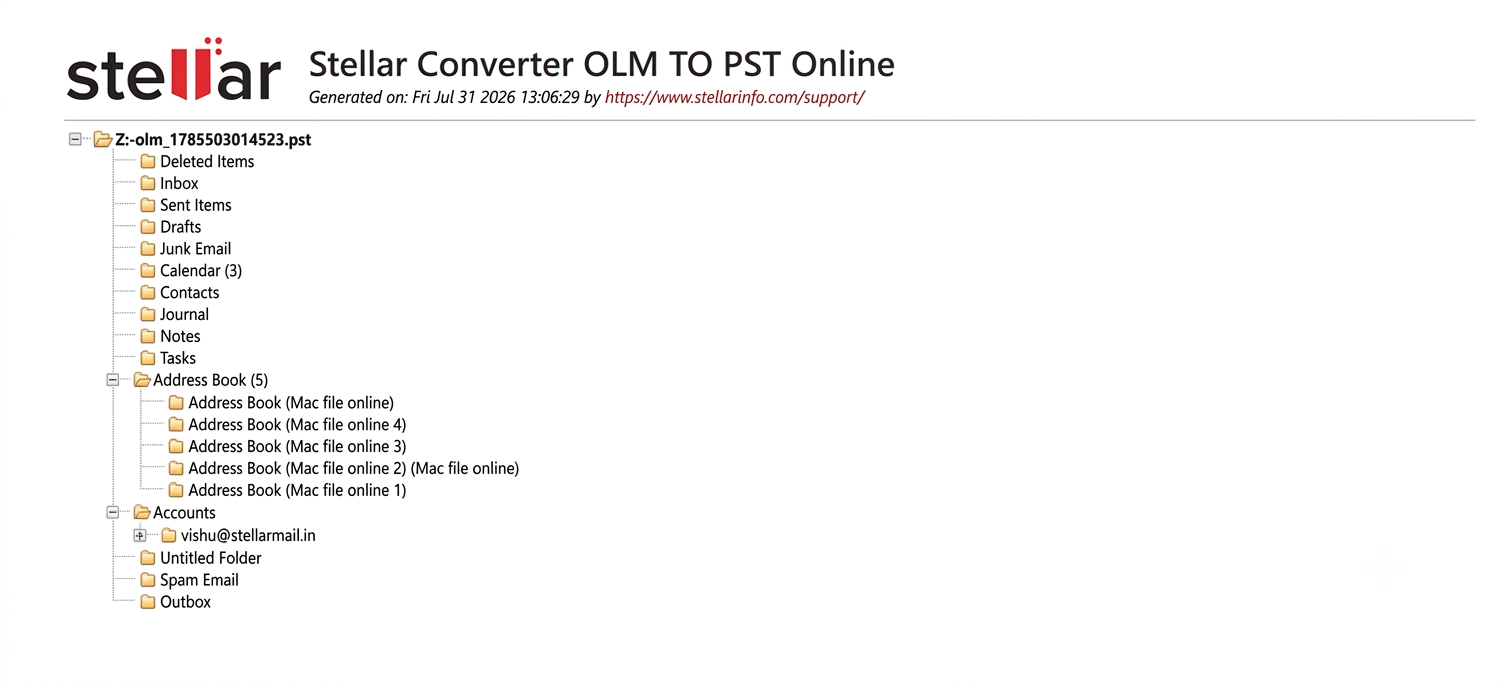
That’s the whole point of this version, get in, get a PST, get out.
Where it actually makes sense:
- You’ve only got one OLM file. Installing a full desktop app for a single mailbox conversion is overkill.
- You’re on a borrowed or locked-down machine. If you can’t install software on the computer in front of you, the browser-based service sidesteps that entirely.
- You don’t want to learn another interface. Some people genuinely just want OLM in, PST out, no scanning, no folder selection, no decisions to make.
But there’s a real trade-off. Your OLM file might contain years of private messages, client communication, contact details, and calendar entries. Uploading all of that to an online service is a different privacy proposition than processing it locally on your own machine. If you’re handling regulated or sensitive business data, that’s worth pausing on, and it’s exactly where the desktop version pulls ahead.
Testing the Desktop App
The desktop version takes the more traditional route: install it, point it at your OLM file, and work through the conversion locally instead of sending anything to a server.
What stood out to me is the scan-and-preview approach. You’re not converting blind, you can actually look inside the mailbox first and decide what’s worth exporting.
Here’s how the process plays out:
1. Launch the app and select the OLM file you want to process.
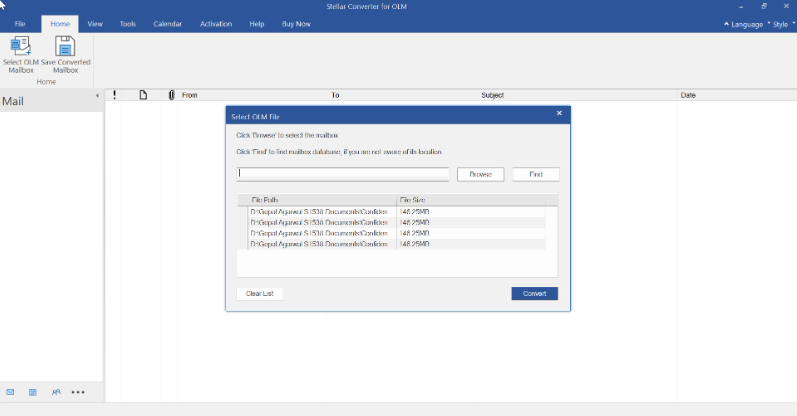
2. Scan the file. The app reads through the mailbox and maps out its contents.
3. Preview everything. Browse the folder structure and see what’s actually in there before you commit to anything.
4. Choose what you need. Rather than exporting the entire archive, you can select individual folders, say, just Inbox mail from 2019 onward instead of a full decade of history.
5. Set PST as the output format.
6. Save the converted file to your destination of choice, ready to import into Outlook for Windows.
Why the Preview Matters More Than It Sounds
A tool that just says “conversion complete” doesn’t actually tell you much. Did it catch every folder? Is the mailbox you expected to find actually there? Did you even want the whole thing converted?
Being able to look through the mailbox before exporting solves that blind spot, especially with older archives, which tend to hold a lot more than you remember: years of inbox mail, sent items, attachments, contacts, calendar entries, deleted items, and whatever custom folders you built along the way. Seeing the structure up front gives you a much better sense of what you’re actually migrating.
Selective Conversion Is the Desktop App’s Real Advantage
This is the feature that separates a “quick conversion tool” from something built for serious migrations.
You don’t always need the entire mailbox. If you’re moving from a work Mac and your OLM file has fifteen years of history in it, there’s a decent chance you only care about the last five. Selective conversion lets you pick exactly what to bring over instead of exporting everything and sorting it out later, which also keeps the resulting PST file smaller and more manageable.
What Data Actually Gets Converted
Depending on what’s in your source OLM file, the desktop tool can carry over:
- Emails, including message structure and attachments
- Attachments, kept paired with the right messages, not orphaned
- Contacts, your full address book
- Calendars, appointments and events
- Tasks
- Notes
This isn’t just an email converter, it’s meant to move the whole mailbox structure, not just the messages.
Folder Structure Actually Survives the Move
Picture opening your new PST and finding every single email dumped into one giant unsorted folder. Technically converted, practically useless.
People build real workflows around folders, Clients, Projects, Finance, Personal, Archive, year-by-year subfolders, all of it. The desktop converter preserves that original hierarchy during the conversion, which is a small detail that makes a big difference once you’re actually trying to work in the converted mailbox afterward.
Large Mailboxes: Where the Desktop Version Earns Its Keep
A small OLM with a few hundred messages is a non-event either way. A multi-gigabyte archive with years of attachments is a different animal entirely, processing time, available RAM, free disk space, item count, and attachment volume all start to matter.
The desktop app is built with that scale in mind and gives you more visibility into what’s happening during conversion. For any real business migration, that visibility is worth having.
Online vs. Desktop: A Quick Comparison
| What matters to you | Online Converter | Desktop App |
|---|---|---|
| No installation | Yes | No |
| Browser-based | Yes | No |
| Basic OLM to PST | Yes | Yes |
| Preview mailbox contents | Limited | Yes |
| Select specific folders/items | Limited | Yes |
| Handles large mailboxes well | Better for smaller jobs | Yes |
| Fine-grained control | Basic | Extensive |
| Processed locally | No | Yes |
| Good for a one-off conversion | Yes | Yes |
| Good for a full business migration | Limited | Yes |
Online wins on convenience. Desktop wins on control. That’s really the whole comparison in one sentence.
For Businesses, I’d Go Desktop, No Real Debate
A professional mailbox migration comes with more to protect: folder structures, client correspondence, attachments, contacts, calendar appointments, tasks, notes. You’ll often want to verify the mailbox and cherry-pick folders rather than convert indiscriminately. The browser version is convenient, but it doesn’t give IT teams or technically-minded users the level of control a migration like that deserves.
For Personal Use, Start Online
If you switched from a Macbook to a Windows PC a while back and have an old OLM file sitting on a drive somewhere, you don’t need an elaborate workflow. Open the online service, upload the file, convert it, download the PST, done.
If the mailbox turns out to be bigger than expected, or you decide you actually want to inspect and cherry-pick what gets converted, that’s your cue to move over to the desktop app.
On Pricing
Stellar prices the online and desktop products separately, and since pricing and promotions shift over time, I’d check the current product pages directly rather than trust numbers from any single review, including this one:
- Online OLM to PST Converter pricing
- Stellar Converter for OLM (desktop) pricing
The more useful question isn’t which one is cheaper, it’s whether your migration actually needs the extra control the desktop app offers. For a quick, low-stakes conversion, convenience wins. For a business migration, the ability to preview and selectively convert data is usually worth paying for.
What I Liked
Stellar doesn’t try to force every OLM migration through the same workflow, and that’s the right call, a single-file conversion and a multi-year business migration aren’t the same problem. The desktop app’s preview-first approach cuts down on nasty surprises after the fact, and preserving the original folder hierarchy is a detail that matters more in practice than it looks like on paper. The overall workflow, scan, preview, select, convert, is also easy to follow without much guesswork.
Where I’d Want to See Improvement
The biggest gap is guidance: someone searching “OLM to PST converter” probably doesn’t know upfront which of the two products they actually need. A simple decision guide would go a long way, something like:
- Small file, quick job → Online
- Large mailbox, need selective conversion → Desktop
- Business migration → Desktop
- Can’t or won’t install software → Online
I’d also like clearer published details on maximum upload size for the online service, expected processing times for large files, and the privacy/security handling for mailboxes containing sensitive professional data, that last point especially matters once you’re talking about years of client correspondence sitting on someone else’s server.
Bottom Line
If you’re moving mailbox data from Outlook for Mac to Outlook for Windows, an OLM-to-PST converter isn’t optional, the format incompatibility forces your hand. Stellar just gives you two ways to solve it.
The online converter is the convenience play: no install, straightforward, good for a single mailbox. The desktop app is the complete solution: scanning, previewing, selective folders, preserved hierarchy, and enough control to handle a genuine business migration.
I wouldn’t pick between them on price. I’d pick based on the mailbox in front of me, a small personal archive doesn’t need the full desktop app, and a large business mailbox shouldn’t be treated as a casual upload job.
FAQs
Can I convert OLM to PST without Outlook for Mac installed?
Yes, a converter works directly on the exported OLM file, so you don’t need Outlook for Mac running to do the conversion.
What’s actually different between OLM and PST?
OLM is Outlook for Mac’s mailbox format; PST is what Outlook for Windows uses. Because they’re built differently, moving between the two platforms requires converting the file.
Is there an online way to convert OLM to PST?
Yes, Stellar’s browser-based converter lets you upload an OLM file and get a PST back without installing anything.
Is the desktop version better for big mailboxes?
For larger or more complex migrations, yes, it gives you scanning, previewing, and selective conversion that the online service doesn’t.
Does it keep my folder structure intact?
Yes, the desktop app preserves the original mailbox hierarchy during conversion.
Are attachments included?
Yes, attachments carry over along with the associated emails, plus other supported mailbox data depending on what’s in the source file.
Can I convert just specific folders instead of everything?
Yes, but only through the desktop app, it lets you select individual folders or items rather than converting the whole archive.
So which one should I actually use?
Online if you want a quick, no-install conversion for a single file. Desktop if you’re dealing with a large mailbox, want to preview contents first, need selective conversion, or you’re handling a more involved Mac-to-Windows migration.