
Xiaomi is one of the leading brands for great technology devices at economical prices. Routers are one of their most selling products. If you own an MI router, this login guide will help you to learn to customize it according to your requirements.
Here, I will guide you on how to log in to the admin panel of any Xiaomi router or modem. After that, we will cover the general router configurations that will help you enhance network security and boost its performance.

MI Router Login Guide
The Xiaomi MiWiFi router series is popular to deliver a smooth and dynamic user experience. If you want to optimize it even further, you should learn how to log in to the admin panel and customize the default configurations. A lot of people don’t know this as the user manual that comes with Xiaomi routers is in the ‘Chinese’ language.
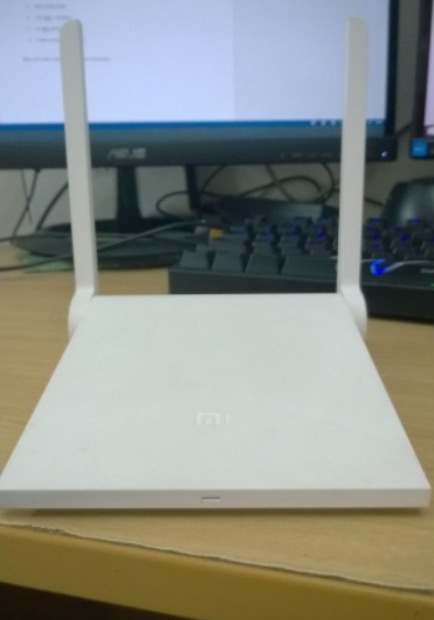
However, you don’t need to worry as I’m going to explain everything in the simplest ‘English’ here. Just go through this guide, and you will be able to access the admin interface of your MI router. Not only this, but you will also be able to edit or change the default settings.
Do This Before Proceeding
Before trying to open the router login page, make sure you meet these requirements:
- The router should be turned on and connected to the device you are going to use to log in.
- You can use any device like a Windows PC, Mac, Android smartphone, or iPhone.
- Check if you are able to access the internet on the device.
- The device should have an installed browser such as Chrome, Firefox, Safari, etc.
- The connection between the device and router (WiFi/LAN) should be stable.

After meeting these, you can follow the steps mentioned below.
Steps to log in to MI Router
Follow these steps to log in to the control center of your Xiaomi router:
- Launch the web browser.
- Enter the default router IP 192.168.31.1 in the address bar.

- Hit ‘Enter’ on the keyboard.
- You will see the MI Router login page on the screen.

- Enter the router username and password in the given fields.
- Click on the login button.
- You are now inside the MI router admin panel.


That’s it. This is how you can log in to the admin interface of any Xiaomi router. If you don’t know the router username and password, you can try using the default ones mentioned below.
Default MI Router Username & Password
Every router comes with a default IP, username, and password out of the factory. All Xiaomi routers use the IP address I have mentioned above (192.168.31.1). So, you don’t have to find it manually. Apart from this, Xiaomi routers also have a default username and password assigned to them that is used while setting it up.

Here are the default username and password assigned to Xiaomi routers:
Formate used: Username & Password.
- (leave blank) & (leave blank)
- (leave blank) & admin
- sweex & mysweex
- admin & admin
- admin & (leave blank)
- (leave blank) & password
You can use these router credentials to log in to any Xiaomi router to set it up or to access the admin panel.
Steps to Reset Xiaomi MiWiFi Router
If you still can’t log in to the admin page of your Xiaomi router even after trying all the default router credentials, you will have to reset the router. Resetting the router will bring it back to the default configurations like when it came out of the box. Follow these steps to reset your Xiaomi router:
- Turn on the Xiaomi router.
- Locate the ‘Reset’ button present at the back.
- Press and hold the reset button with a pin, paperclip, or any pointed object.

- Keep holding it for around 15 seconds.
- Release the button when all the lights start flashing.
- Wait until the router reboots successfully.

That’s it. Remember that after resetting the router, you will have to go through the setup procedure once again.
General Customizations to Make via the Admin Panel
Now let’s take a look at some general customizations that you can do through the admin interface. These tweaks will allow you to optimize the settings according to your needs. As a result, your network connection will be more secure and faster.
1. Change the Default Router Username & Password: The first thing you should do after entering the admin interface is to change the default router credentials. You have to go to Router Settings and then click on the ‘Security Center’ to do that.

2. Set up Encryption Settings: If you want to keep your WiFi network secure, you have to use the right encryption settings. Go to ‘Router Settings,’ click on ‘WiFi Settings,’ and then enable ‘WPA2-PSK encryption.’
3. Change WiFi SSID & Password: You should frequently change the name (SSID) and password of your WiFi network to ensure it stays secure at all times. Go to ‘Router Settings’ and then click on ‘WiFi Settings’ to do that.

4. Set up Parental Controls: If you don’t want users on your network accessing unnecessary/obscene pages, then you can block the webpages directly from the control center. This is a critical feature when you have kids accessing the internet through your network.
5. Upgrade Router Firmware: Xiaomi keeps releasing firmware updates for their routers. These updates are able to fix existing bugs and issues, and also optimize the overall experience. To make sure that your router is always up to date, go to the ‘Automatic Updates’ section, and turn on ‘Automatic Firmware updates.’

These are some general customizations that you shouldn’t miss after accessing the control center. Apart from these, there are many other things like viewing usage stats and insights, removing connected devices, setting up a proxy, etc.
Final Words
Xiaomi routers are pretty different from the routers coming from other brands. These routers come with advanced functions like camera photo backup, offline video download, online game acceleration, VPN support, and more. You can access and enable all such features through the admin panel. This is how you can access it.
That’s all for this post. I hope you find it helpful. Feel free to ask any questions or share suggestions regarding MI routers using the comment box.