
Deleted an important file on your Windows PC? You can recover up to 1GB of deleted or lost data completely free using Stellar Data Recovery Free Edition. The process is simple: install the software, select the file type, scan the drive, preview the recoverable files, and restore them. For recently deleted files, the entire recovery process usually takes less than 10 minutes.
The thing most people don’t know is deleting a file on Windows does not immediately erase it from the drive. Windows simply marks that storage space as available. Until new data overwrites it, there’s still a solid chance of recovery.
That’s exactly where recovery software helps.
What Is Stellar Data Recovery Free Edition?
Stellar Data Recovery Free Edition is a free Windows recovery tool that helps recover deleted, formatted, or inaccessible files from HDDs, SSDs, USB drives, SD cards, and external storage devices.
The free version lets you recover up to 1GB of data without paying anything. Unlike many “free” recovery tools that only allow scanning, Stellar actually lets you restore files within that limit.
Free Edition Specifications
| Feature | Free Edition |
|---|---|
| Recovery Limit | Up to 1GB |
| Individual File Size Limit | 100MB |
| Scan Modes | Standard Scan + Deep Scan |
| Preview Before Recovery | Yes |
| Supported File Types | Unlimited |
| Windows Compatibility | Windows 8, 10, 11 |
| Supported File Systems | NTFS, FAT16, FAT32, exFAT |
| BitLocker Recovery | Yes |
| Cost | Free |
The 100MB per-file limit matters mostly for large videos. If you are recovering documents, photos, PDFs, ZIP files, or smaller media, the free edition usually covers most everyday recovery situations.
What Actually Happens When You Delete a File on Windows?
Understanding this makes a huge difference in recovery success.
When you delete a file, even using Shift + Delete, Windows usually does not wipe the actual data immediately. Instead, it removes the file’s reference from the file system and marks that space as reusable.
The actual file data still remains on the drive temporarily.
This is your recovery window.
On traditional hard drives and USB drives, deleted data can sometimes stay recoverable for weeks if the drive is not actively used.
SSDs are different because of TRIM.
Modern SSDs use TRIM commands to clean deleted blocks in the background for better performance. Once TRIM clears those sectors, recovery becomes extremely difficult.
But here’s what I noticed during testing:
- TRIM does not always execute instantly
- External SSDs sometimes delay TRIM
- Older SSDs behave less aggressively
- Recently deleted SSD files are often still recoverable
The biggest mistake people make after deleting files is continuing to use the drive normally.
The more data written to the drive, the lower your recovery chances become.
Before You Start Recovery: Important Things to Do First
Before downloading any recovery software, do these first:
Stop using the affected drive immediately
Do not:
- download files
- install games
- copy videos
- update Windows
Basically, avoid any read-write activities on the same drive. Every new write operation can overwrite deleted data permanently.
Check the Recycle Bin
This sounds obvious, but many users skip it.
If you used the normal Delete key instead of Shift + Delete, the files are probably still sitting there.
Check OneDrive or Cloud Backups
If your Desktop, Documents, or Pictures folders sync with:
- OneDrive
- Google Drive
- Dropbox
you may already have a backup copy available.
Install Recovery Software on Another Drive
This matters more than people think.
If deleted files were on the C: drive, do not install recovery software on C:.
Install it on:
- another partition
- a USB drive
- an external SSD
This avoids overwriting deleted sectors during installation.
Free Ways to Recover Deleted Files on Windows
Before using third-party tools, Windows already provides a few built-in recovery methods worth checking first.
Method 1: Recover Files from Recycle Bin
If the file was deleted normally:
- Open Recycle Bin
- Right-click the file
- Click Restore
The file returns to its original location.
Simple and instant.
Method 2: Restore Previous Versions
Windows sometimes stores older folder snapshots through restore points.
To check:
- Right-click the folder where the deleted file existed
- Open Properties
- Go to Previous Versions
- Select an older version
- Open and restore files
This only works if System Protection was enabled earlier.
Method 3: Use File History Backup
If File History was enabled previously:
- Open Settings
- Go to Backup
- Click Restore files from a current backup
- Browse older versions
Most people unfortunately never enable this feature.
Method 4: Windows File Recovery Tool
Microsoft also offers its own free recovery tool called Windows File Recovery.
It works surprisingly well, especially for:
- NTFS drives
- recently deleted files
- formatted drives
But there’s a catch.
It is entirely command-line based.
No preview.
No graphical interface.
No beginner-friendly workflow.
For technical users, it is useful. For everyday users, recovery software with previews is usually much easier.
Why I Ended Up Using Stellar Data Recovery Free Edition
Built-in Windows tools work only in limited situations.
Once files are:
- permanently deleted
- removed using Shift + Delete
- lost after formatting
- hidden inside RAW partitions
you usually need dedicated recovery software. That’s where Stellar performed much better in my testing.
It handled:
- deleted SSD files
- formatted USB drives
- RAW external HDDs
without requiring technical knowledge.
Supported Recovery Scenarios
The software supports recovery from:
- Permanently deleted files
- Emptied Recycle Bin
- Formatted drives
- Corrupted USB drives
- BitLocker encrypted drives
- Failed Windows updates
Supported Devices
It works with:
- Internal HDDs
- SATA SSDs
- NVMe SSDs
- USB flash drives
- External hard drives
- SD cards
- microSD cards
- Memory cards
I tested recovery on:
- a Samsung NVMe SSD
- SanDisk USB drive
- external WD HDD
All three scanned successfully.
Step-by-Step: How to Recover Deleted Files for Free on Windows
Step 1: Download and Install the Software
Download Stellar Data Recovery Free Edition from the official website.
Important: Do not install it on the same drive where files were deleted.
If your files were deleted from C:, install the software on:
- a USB drive
- another partition
- an external SSD
This improves recovery chances significantly.
Step 2: Choose What You Want to Recover
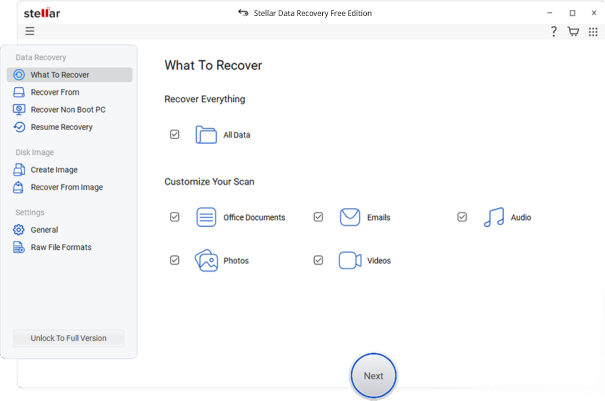
The software lets you select:
- Documents
- Photos
- Videos
- Emails
- Audio
- Recover Everything
What I noticed during testing is that targeted scans are noticeably faster. For example: Scanning only photos on an SD card finished much quicker than scanning everything.
Step 3: Select the Drive
Choose the drive or folder where files were deleted.
You can scan:
- internal drives
- external HDDs
- SSDs
- USB drives
- SD cards
If Windows no longer detects the partition properly, use “Can’t Find Drive.” That feature worked well during RAW partition testing.
Step 4: Run Standard Scan or Deep Scan
This is where most recovery quality differences happen.
Standard Scan
Best for:
- recent deletions
- Recycle Bin recovery
- Shift + Delete recovery
It is fast and works well for healthy drives.
A 512GB NVMe SSD scan finished in under 5 minutes during testing.
Deep Scan
Use Deep Scan for:
- formatted drives
- RAW drives
- corrupted partitions
- older deletions
Deep Scan takes longer because it searches sectors directly instead of relying only on the file system. On a 64GB formatted USB drive, Deep Scan took roughly 40 minutes but recovered far more files.
My recommendation: Start with Standard Scan first. If results look incomplete, switch to Deep Scan.
Step 5: Preview Recoverable Files
This is one of the most useful features. Before recovering anything, you can preview:
- images
- PDFs
- videos
- documents
That matters because some files appear recoverable but are actually damaged internally. Previewing avoids wasting your free recovery limit on corrupted files.
Step 6: Recover Files
Select the files you want and click Recover. And Save recovered files to another drive, not the original affected drive. The free edition restores up to 1GB of total data. For documents and photos, that limit is usually enough.
My Recovery Results
Test 1: Shift + Deleted Office Files from SSD
Setup:
- Windows 11
- 512GB NVMe SSD
- DOCX and XLSX files deleted permanently
Result: Standard Scan recovered everything within minutes.
The original:
- filenames
- folders
- document previews
all remained intact. For recent deletions, recovery quality was excellent.
Test 2: Formatted USB Drive Recovery
Setup:
- 64GB SanDisk USB drive
- quick formatted
- containing photos and MP4 videos
Result: Standard Scan recovered only partial results.
Deep Scan recovered significantly more:
- JPG files
- MP4 videos
- ZIP archives
Some larger archives were partially corrupted, which is fairly common after formatting. Photos recovered much more consistently than larger videos.
Test 3: RAW External HDD Recovery
Setup:
- 1TB external HDD
- showing RAW in Disk Management
- inaccessible in Windows
Result: Stellar still detected the drive through Physical Disk Scan.
After Deep Scan:
- photos recovered properly
- documents recovered cleanly
- some older videos were partially damaged
Honestly, the RAW recovery performance was better than expected for free software.
Free Recovery Alternatives Compared
| Tool | Free Limit | Interface | Best For | Deep Scan |
|---|---|---|---|---|
| Stellar Data Recovery Free | 1GB | Beginner-friendly | Overall recovery | Yes |
| Recuva | Unlimited | Simple | Quick HDD recovery | Yes |
| Windows File Recovery | Unlimited | Command-line | Advanced users | Yes |
| EaseUS Free | 2GB | Beginner-friendly | USB drives | Yes |
| TestDisk / PhotoRec | Unlimited | Technical | Partition recovery | Yes |
When Stellar Makes More Sense
I’d recommend Stellar if you want:
- a cleaner interface
- preview support
- RAW recovery
- BitLocker support
- easier recovery workflow
Compared to Recuva, it handled formatted drives and corrupted partitions better during testing.
What Affects Recovery Success?
No recovery software guarantees perfect results. Recovery depends mostly on:
Things That Improve Recovery Chances
- stopping drive usage immediately
- scanning quickly after deletion
- recovering from HDDs or USB drives
- using Deep Scan for formatted drives
Things That Reduce Recovery Chances
- continuing to use the drive
- SSD TRIM execution
- physical drive damage
- full formatting
- heavy overwriting
When Recovery Software Cannot Help
Recovery software has limitations.
Physically Damaged Drives
If a drive:
- clicks
- overheats
- disappears randomly
- makes grinding noises
stop immediately.
Software recovery can worsen hardware damage.
Professional recovery labs are safer in those situations.
Fully Overwritten Data
Once deleted sectors are overwritten, recovery becomes impossible. No software can reconstruct overwritten sectors.
Full Format Recovery
Quick formatting usually leaves recoverable data behind. Full formatting overwrites sectors directly, which makes recovery far less likely.
Is Stellar Data Recovery Safe?
Yes. During testing, the software behaved safely and operated in read-only mode during scans.
I also noticed:
- normal CPU usage
- stable memory usage
- no bundled junk software
- clean installation
The biggest risk is not the software itself. It’s installing recovery tools onto the same affected drive.
Final Verdict
For most common Windows recovery situations, Stellar Data Recovery Free Edition is one of the better free recovery tools available right now.
It works especially well for:
- deleted documents
- formatted USB drives
- SD card recovery
- RAW partitions
- external drive recovery
The 1GB free limit is enough for many everyday recovery scenarios, especially office files and photos.
What I liked most during testing was consistency.
The software:
- preserved filenames
- retained folder structures
- previewed files properly
- recovered usable data reliably
It is not perfect. Large video recovery still pushes users toward paid plans, and Deep Scan can take a long time on large HDDs. But compared to many free recovery tools that either feel outdated or aggressively block features behind paywalls, Stellar feels far more practical for real-world use.
And, the biggest factor in successful recovery is speed. The faster you stop using the drive and begin scanning, the better your recovery chances usually are.