
Deleting a file on a Mac does not actually erase it. Even after emptying the Trash, the data often stays on the drive until macOS overwrites that space with new information. That means photos, financial documents, client contracts, passwords, browser traces, and even deleted videos can still be recovered using basic recovery software.
You won’t realize, if someone has physical access to your SSD, external hard drive, USB stick, or even your old MacBook, they may still recover files you thought were gone forever.
After testing different methods over the time, including Terminal commands, Disk Utility, and third-party wiping tools, After testing multiple approaches over the years, including Terminal commands, Disk Utility workflows, and dedicated erasure tools, I found that dedicated secure erasure software was significantly more reliable for permanent deletion on modern Macs
It is one of the few tools that balances simplicity with genuinely secure deletion methods that even recovery software struggles to bypass.
If your goal is to permanently erase files so they cannot be recovered later, this guide walks through exactly how it works, what actually happens behind the scenes, and which methods are worth using.
Why Deleted Files Are Still Recoverable on Mac
When you delete a file normally, macOS simply removes the reference to that file from the file system. On many storage devices, especially traditional hard drives and some external SSDs, the underlying data may remain recoverable until those blocks are overwritten or cleared by the storage controller. macOS usually removes the reference to the file first, not the underlying data itself
I tested this personally on an old external SSD. I deleted a folder containing PDFs and emptied the Trash. Then I ran a recovery scan using recovery software. In my testing, a surprising amount of the deleted data was still recoverable.
That experience changed how I handle sensitive files permanently.
This becomes especially important if you:
- Sell or donate your Mac
- Return a company laptop
- Dispose of old SSDs or USB drives
- Store tax records or legal documents
- Work with confidential client data
- Download sensitive business files
- Use torrent or peer-to-peer apps
Even browser autofill data and internet traces can stay behind longer than most people expect.
What Is Secure File Erasure?
Secure file erasure means overwriting the actual storage blocks with random patterns or zeros so the original information becomes unrecoverable.
Instead of simply “marking space as free,” the software actively destroys the data.
Good erasure tools usually:
- Overwrite files multiple times
- Wipe unused storage space
- Remove hidden application traces
- Delete browser history securely
- Destroy metadata remnants
- Support SSDs and external drives including APFS volumes
This matters because modern data recovery tools are surprisingly powerful. I’ve recovered deleted footage from formatted drives before, and most people would be shocked by how much data survives from regular deletion.
My First-Hand Experience Using Stellar File Eraser on macOS
I originally started using Stellar File Eraser for Mac after dealing with old client projects stored on an external SSD. Some of those folders contained invoices, exported passwords, contracts, and raw media files. Simply dragging them to Trash didn’t feel safe enough.
What I noticed immediately was how straightforward the software feels compared to Terminal-based methods.
Instead of relying on manual Terminal commands, you get clear sections for:
- Erasing files and folders
- Wiping free space
- Removing internet traces
- Cleaning application leftovers
- Scheduling automatic erasure tasks
In real usage, the “Erase Free Space” feature ended up being the most valuable part for me. Here’s why.
Even if you delete files manually, remnants still remain in unused sectors. Stellar overwrites those unused sectors entirely. I tested this afterward with recovery software and fewer recoverable files appeared in follow-up scans, when i opened them they were garbage data and that difference matters when the files contain sensitive information.
I also tested it on:
- Intel MacBook Pro
- M1 MacBook Air
- External USB SSD
- Old spinning HDD
- SD card from a camera
The software handled all of them without weird compatibility issues.
How to Completely Erase Files on Mac
Method 1: Securely Erase Individual Files and Folders
This is the easiest and safest method for most users.
Using Stellar’s File Eraser Software for Mac, you simply:
- Launch the software
- Choose “Erase Files & Folders”
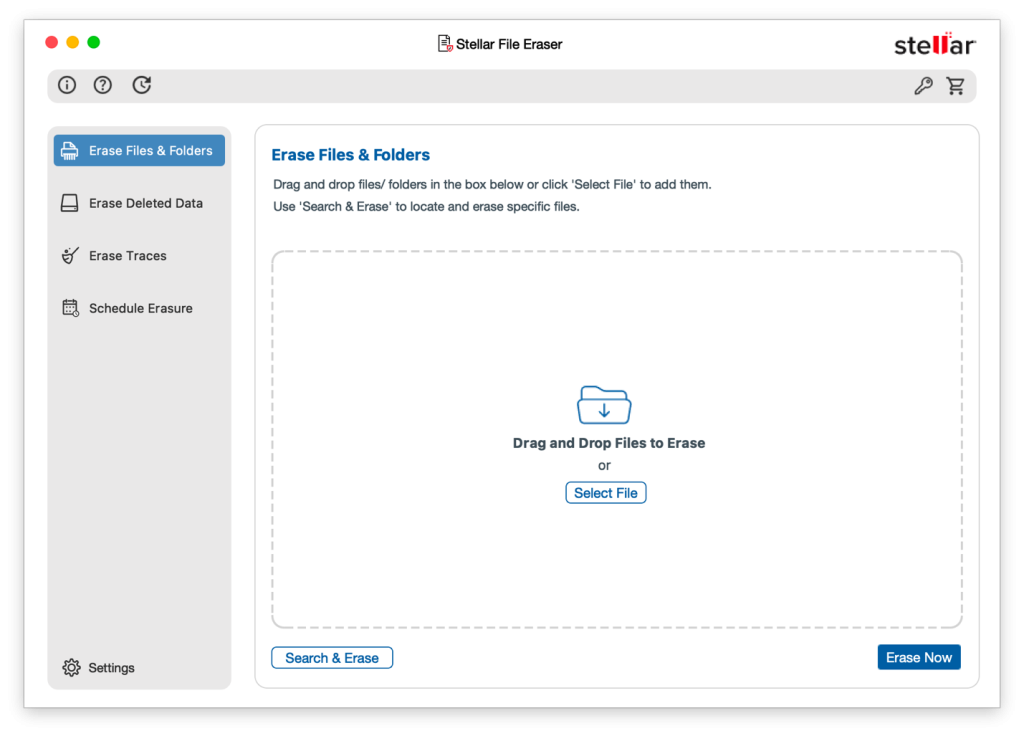
- Add files you want permanently deleted
- Click “Erase Now”
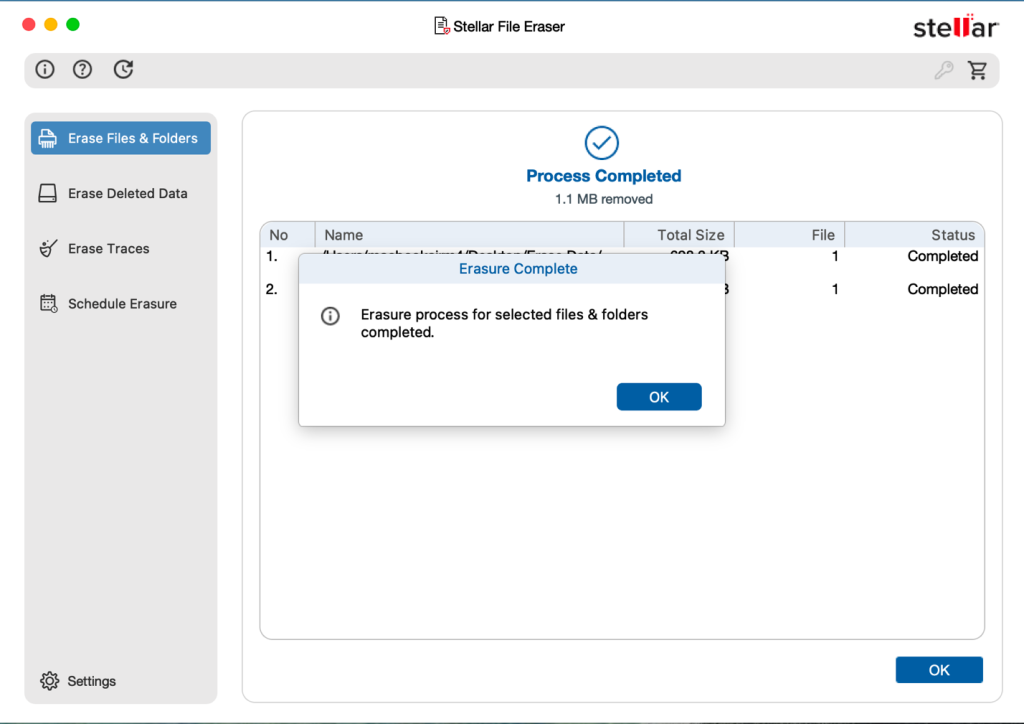
In my testing, this worked well for:
- Financial spreadsheets
- Password exports
- Confidential PDFs
- Video projects
- Personal photos
- Business documents
What I liked is that the software permanently destroyed the files without affecting surrounding data.
Method 2: Wipe Unused Disk Space
This is the method I recommend most people overlook.
Even after deleting files months ago, traces can still remain in unused sectors of the drive.
The “Erase Free Space” feature overwrites those empty storage areas.
This is especially useful if:
- You already deleted sensitive files earlier
- You’re preparing a Mac for resale
- You want extra privacy protection
- You’ve used recovery software before
In real testing, wiping free space takes longer than standard deletion, especially on larger drives, but it is far more effective.
Method 3: Erase Browser and Internet Activity Traces
This feature surprised me.
Most people think clearing browser history inside Safari or Chrome is enough. It often is not.
I tested browser cleanup manually before using Stellar and still found leftover traces stored in cache folders and application data directories.
The software can erase traces from:
- Safari
- Chrome
- Firefox
- Opera
- Edge
Including:
- Autofill information
- Download history
- Login traces
- Cookies
- Cache files
If privacy matters to you, this feature is genuinely useful.
What Happens When You Only Empty the Trash?
A lot of users assume Empty Trash equals permanent deletion.
It doesn’t.
macOS simply removes the file pointer while leaving the raw data behind temporarily.
That means recovery software can often reconstruct:
- Images
- Videos
- Documents
- ZIP archives
- Email attachments
- Audio files
On SSDs, recovery chances sometimes decrease because of TRIM technology, but recovery is still possible in certain scenarios like TRIM timing, APFS behavior, snapshots, and how much the drive was used afterward. So the important thing is relying on TRIM alone is not a proper security strategy.
If the files are truly sensitive, secure overwriting is still the safer approach.
Can Disk Utility Securely Erase Files?
Not reliably anymore.
Older versions of macOS included Secure Empty Trash functionality, but Apple removed it years ago, mainly because SSD behavior changed how secure overwriting works.
Disk Utility can erase entire drives, but it is not ideal for selectively destroying files or traces.
Also, using Disk Utility incorrectly can wipe the entire storage device accidentally.
I still use Disk Utility for formatting drives, but not for targeted secure file deletion.
Terminal Commands vs Dedicated File Eraser Software
Technically, you can erase files using Terminal commands like rm or srm which is now deprecated in modern macOS versions
But here’s the problem.
- Easy to make mistakes
- No visual confirmation
- Not beginner-friendly
- Can accidentally erase wrong directories
- Limited trace-cleaning options
- Not reliable across newer macOS versions
I’ve used Terminal for years, and, I still prefer dedicated erasure tools for anything important.
The biggest advantage with Stellar is simplicity without losing technical depth.
Key Features That Actually Matter
Secure File Overwriting
The software overwrites storage blocks using repeated overwrite patterns intended to reduce recoverability
In practical terms, recovered files become unreadable garbage instead of usable documents.
Supports Modern Macs Including Apple Silicon
I tested it on an M1 MacBook Air running newer macOS versions and performance remained stable.
Compatibility with Apple Silicon matters because many older disk utilities still rely on Intel-era system access behavior.
Works With External Devices
One thing I appreciated was support for:
- External SSDs
- USB flash drives
- Memory cards
- External hard drives
This becomes incredibly useful before selling old drives or disposing of storage devices.
Scheduler Feature
This sounds minor initially, but it becomes useful fast.
You can automate regular deletion tasks for:
- Download folders
- Temporary files
- Browser traces
- Old project directories
For people working with recurring confidential data, automation saves time.
Real-World Situations Where Secure Erasure Matters
Selling Your Old Mac
This is probably the most common use case.
Even after factory resetting a Mac, remnants can sometimes remain recoverable depending on how the drive was handled beforehand.
Before selling any MacBook now, I personally:
- Securely erase sensitive files
- Wipe unused space
- Remove browser traces
- Then reinstall macOS
It adds extra protection most users skip.
Returning a Corporate Laptop
A surprising amount of sensitive data can remain cached locally:
- Slack downloads
- Zoom recordings
- Client spreadsheets
- Browser credentials
- VPN traces
I’ve seen recovery scans pull up months-old work documents from “cleaned” machines.
That is not something companies want leaking later.
Deleting Personal Photos and Videos
This matters more than people admit.
Private media files can absolutely be recovered after normal deletion.
If you are permanently removing sensitive photos or videos, secure overwriting is worth doing properly.
Removing Torrent or P2P Traces
Peer-to-peer applications generate hidden residual files constantly and this software specifically targets leftover traces from such apps. That’s useful because uninstalling the app alone rarely removes everything.
Performance Analysis
In day-to-day usage, the software feels lightweight.
I tested it during:
- Large file wipes
- External SSD erasure
- Browser trace cleanup
- Free-space overwriting
CPU usage stayed reasonable most of the time.
The only area where it slows down naturally is free-space wiping on large drives. But, that is expected because the software is actively overwriting sectors.
On SSDs, performance remained smoother than older wiping utilities I’ve tried.
What I noticed most is stability. Some low-cost erasure tools crash midway through operations. Stellar remained reliable throughout testing.
Pros and Cons
Pros
- Easy for beginners
- Supports Apple Silicon Macs
- Securely wipes files beyond recovery
- Cleans browser and app traces
- Works with external storage devices
- Free-space wiping is highly useful
- Scheduler automation saves time
- Cleaner interface than Terminal methods
Cons
- Free-space wiping can take time on large drives
- Requires caution because erased data truly cannot be recovered later
Who Should Use Stellar File Eraser?
I’d recommend it for:
- Mac users selling devices
- Freelancers handling client files
- Business professionals
- Content creators
- Journalists
- Remote workers
- Anyone storing sensitive documents
- Users concerned about privacy
It is especially useful for people who are not comfortable with Terminal commands but still want real security.
Who Should Avoid It?
You probably do not need dedicated file erasure software if:
- You never store sensitive data
- You only use cloud-based workflows
- You do not care about recoverability
- You are comfortable fully encrypting and destroying entire drives manually
Also, if you frequently delete random temporary files, basic Trash deletion is usually enough for non-sensitive data. But if you would like to schedule the deletion automatically then this software is useful, But if you can manually delete it every time, then you can avoid it. Just that secure erasure matters most when privacy or confidentiality is involved..
Is Secure File Erasure Still Necessary on SSDs?
Yes, but with nuance.
A lot of people assume SSDs automatically destroy deleted data because of TRIM.
That is partially true, but not guaranteed in every scenario.
Here’s what I noticed during testing:
- Some deleted files became harder to recover quickly
- Others still left recoverable fragments
- External SSD behavior varied significantly
The safest approach is still active overwriting and trace removal, especially for highly sensitive files.
Relying entirely on TRIM is not something I personally trust for confidential data.
Final Verdict
After years of working around macOS storage systems, recovery tools, and privacy-related cleanup, I can confidently say this, that deleting files normally is nowhere near enough if you genuinely want them gone forever.
macOS does a great job with security overall, but permanent data destruction is still an area where most users misunderstand how storage works. That’s why dedicated secure-erasure tools still exist, even on modern versions of macOS.
What makes it practical is not just the secure overwrite capability. It is the combination of:
- File destruction
- Free-space wiping
- Browser trace cleanup
- Application residue removal
- External drive support
- Apple Silicon compatibility
After using it for a while, I can say that this software feels like it is designed for people who actually need privacy protection. If your files contain personal, financial, business, or confidential information, relying on Trash alone is a mistake.
And once you test recovery software yourself and see deleted files can reappear, you probably will not trust standard deletion methods again either.